← Central do Criador · Guias de Recursos
📤 Postar é como você é descoberto — e pago. Três tipos de posts, três maneiras de ganhar. Vamos fazer com que cada um funcione para você.
O que é
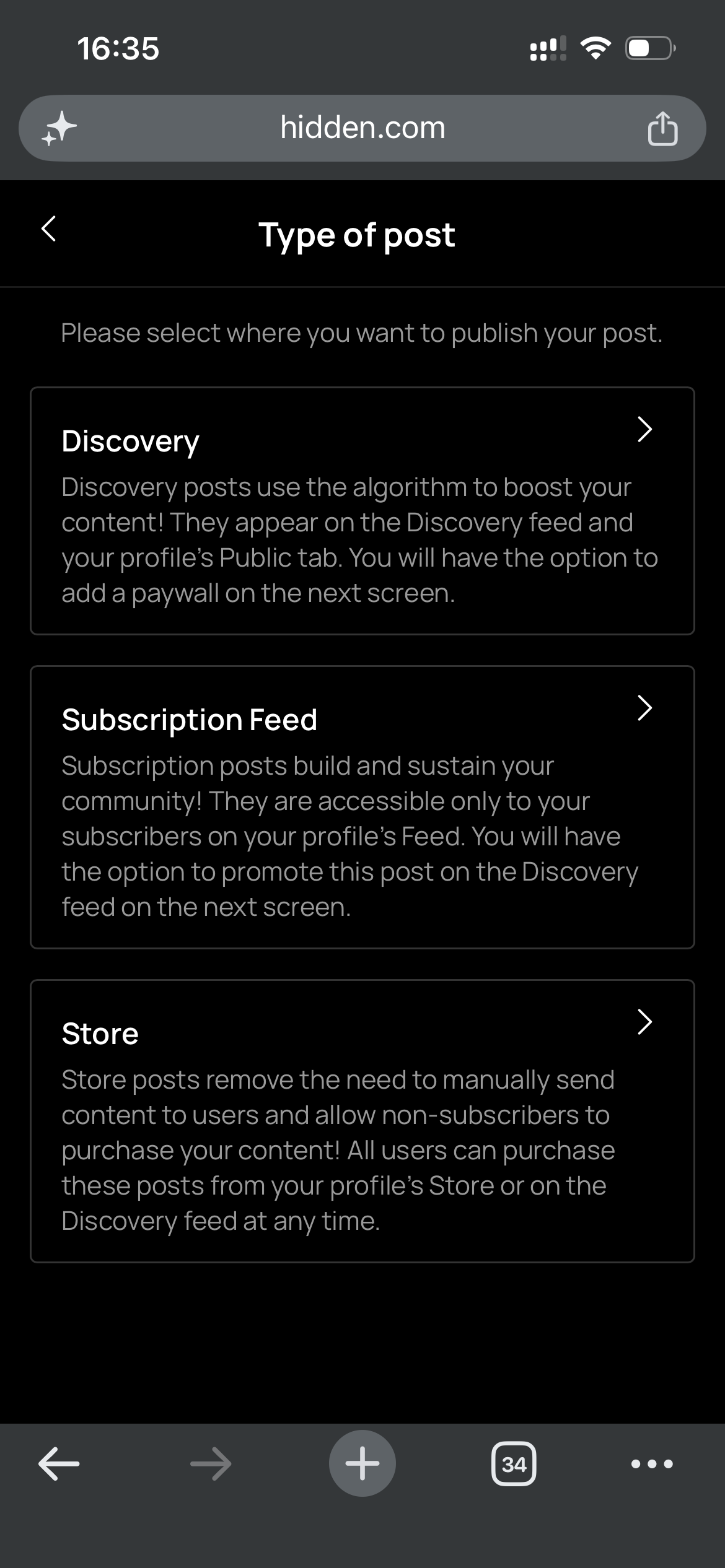
Publicações é como você publica conteúdo no Hidden. Cada post fica no seu perfil, e você você escolhe como ele rende. Ao criar um post, você escolhe um dos três tipos de post — cada um aparece em um lugar diferente e gera dinheiro de uma forma diferente.
Os três tipos de post
| Tipo | Quem vê | Como ele rende | Onde ele fica |
|---|---|---|---|
| 🌍 Descoberta | Todos - feed Discovery, página Explorar, aba Público do seu perfil | Alcance gratuito, ou bloqueado por um preço único | aba Público |
| 💖 Feed de Assinatura | Seus assinantes (mais Discovery, se você promover) | Aumenta suas assinaturas | aba Feed |
| 🛍️ Loja | Todos - feed Discovery, página Explorar, aba Loja do seu perfil | Compras únicas, com preços separados para assinantes / não-assinantes | aba Loja |
🌍 Descoberta
Posts Discovery promovem seu conteúdo e perfil em todo o Hidden. Eles aparecem no Feed de descoberta e página Explorar — como as publicações aparecem no Instagram ou TikTok — e em seu aba Público. Eles vêm de duas formas:
- Grátis — sem paywall, gratuito para qualquer um ver. Puro alcance.
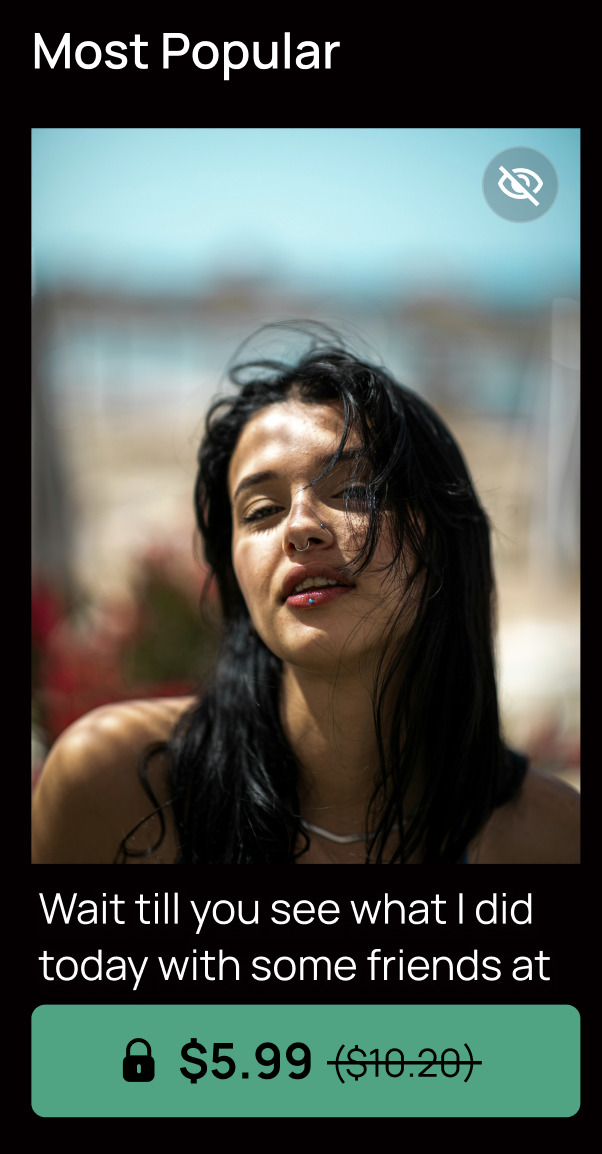
- Bloqueado — você define o preço. Qualquer um pode ver a capa de graça, mas paga para desbloquear o restante. Fãs podem comprar direto do feed, da página explorar ou do seu perfil.
💖 Feed de Assinatura
As publicações do Feed de Assinatura são visíveis apenas para fãs que assinaram você, e elas ficam em seu aba Feed.
Quer mais alcance? Ative "Promover post no discovery feed" e sua publicação aparecerá no Discovery com tudo, exceto a capa, bloqueado pelo preço da sua assinatura — assim, novos fãs podem assinar e desbloquear diretamente do discovery feed.
🛍️ Loja
As publicações da Loja permitem que seus fãs comprem seu conteúdo mais popular sem que você precise enviar manualmente. Qualquer um pode comprar do seu aba Loja a qualquer momento.
O melhor: você pode definir dois preços — um para seus Assinantes leais e outro para Não-Assinantes.
Primeiros passos
1. Adicione seu conteúdo e detalhes
- Escolha mídia do seu Vault ou envie algo novo do seu dispositivo
- Escreva sua legenda
- Adicione categorias e tags para que os fãs certos te encontrem
- Marque outros criadores se for uma colaboração (veja a nota de consentimento abaixo)
2. Inicie uma nova publicação
Toque para criar uma nova publicação e, em seguida, escolha o tipo de publicação — Discovery, Feed de Assinantes ou Loja.
3. Defina preços e visibilidade
- Descoberta — gratuita ou bloqueada com um preço que você escolher
- Feed de Assinatura — somente para assinantes (opcionalmente promovida para o Discovery)
- Loja — defina um preço para Assinantes e um preço para Não Assinantes
4. Publicar ou agendar
Publique agora ou agende para uma data e hora futuras. Toda publicação passa por uma rápida revisão de moderação antes de ser publicada. Você saberá que sua publicação está passando por moderação sempre que houver um ícone de olho riscado sobre sua publicação ao vê-la em seu perfil. Os usuários não podem ver uma publicação até que ela seja aprovada na moderação.
Agendamento e edição de publicações
Planejando com antecedência? Agende uma publicação para mais tarde e gerencie-a a qualquer momento em seu calendário de agendamento. Toque nos três pontos em uma publicação agendada para três opções:
- Editar Publicação — abre a tela Nova Publicação com tudo preenchido (mídia, legenda, criadores marcados, categorias, tags, agendamento, tipo de publicação e preço). Altere o que quiser e toque em Publicar para salvar. Ela mantém sua posição na fila, a menos que você altere a data ou a hora.
- Publicar Agora — ignora o agendamento e entra no ar imediatamente (e então sai do seu calendário).
- Excluir Publicação — remove-a da fila após uma rápida confirmação. Qualquer mídia permanece segura no seu Vault.
Moderação: o que esperar
Cada publicação passa por uma rápida verificação de moderação antes de ficar visível. Algumas regras que valem a pena saber:
- Editando uma publicação agendada? Apenas mídias e legendas novas ou alteradas são verificadas novamente — tudo o que você não mexeu mantém sua aprovação.
- Se uma publicação editada não foi aprovada pela moderação no horário agendado, ela permanece oculta — mesmo após esse horário — até ser aprovada, então ela aparece instantaneamente. Se for rejeitada, ela permanece não publicada.
Marcando outros criadores (colaborações)
- Marcando um criador que já está no Hidden? Sem etapas extras — a moderação padrão se aplica.
- Marcando alguém que ainda não está no Hidden? Sua publicação permanece oculta em todos os lugares — perfil, Discovery, tudo — até que essa pessoa complete um formulário de consentimento. Marque mais de uma pessoa nova e todas elas devem consentir antes que seja publicada.
★ Dicas e Truques
★ Use os três tipos juntos: Descoberta para alcance, Feed de Assinatura para aumentar inscritos, Loja para vendas 24 horas por dia, 7 dias por semana.
★ Sua capa é tudo em uma publicação bloqueada — é a única parte que os fãs veem antes de pagar, então torne-a irresistível.
★ Promova suas melhores publicações do Feed de Assinatura para o Discovery para transformar curiosos em assinantes.
★ Marque com precisão usando categorias e tags — é assim que novos fãs encontram você no Discovery.
★ Agende com antecedência para que a moderação seja concluída bem antes do lançamento.
Perguntas Frequentes
Relacionados
- 🗄️ Vault — de onde vem o conteúdo da sua publicação
- 👤 Creator Profile Page — onde suas publicações aparecem (abas Público / Feed / Loja)
- ✨ Smart Vault — reutilize conteúdo publicado ao enviar mensagens para fãs
Mais Perguntas?
Fale conosco aqui: