← Central do Criador · Guias de Recursos
📚 Escreva uma vez, envie para sempre. Crie uma biblioteca das suas melhores mensagens — texto, mídia, preço e tudo mais — e envie-as em segundos. Mais vendas, menos digitação. ♡
O que é
A Message Library é sua coleção pessoal de roteiros de mensagens reutilizáveis. Cada roteiro pode conter texto, mídia do Vault, um preço e tags de co-participantes — para que as mensagens que você envia repetidamente (boas-vindas, promoções, ofertas sazonais) estejam prontas com um toque. Funciona da mesma forma em um chat 1-para-1 e em uma mensagem em massa.
Por que é importante
Mensagens são sua maior fonte de renda — e quanto mais rápido e consistentemente você puder enviar ótimas mensagens PPV, mais você ganha. Os roteiros eliminam a redigitação e diminuem o atrito para vender.
Onde encontrar
A Message Library não é um item separado na sua barra lateral — ela vive dentro das mensagens, em dois lugares:
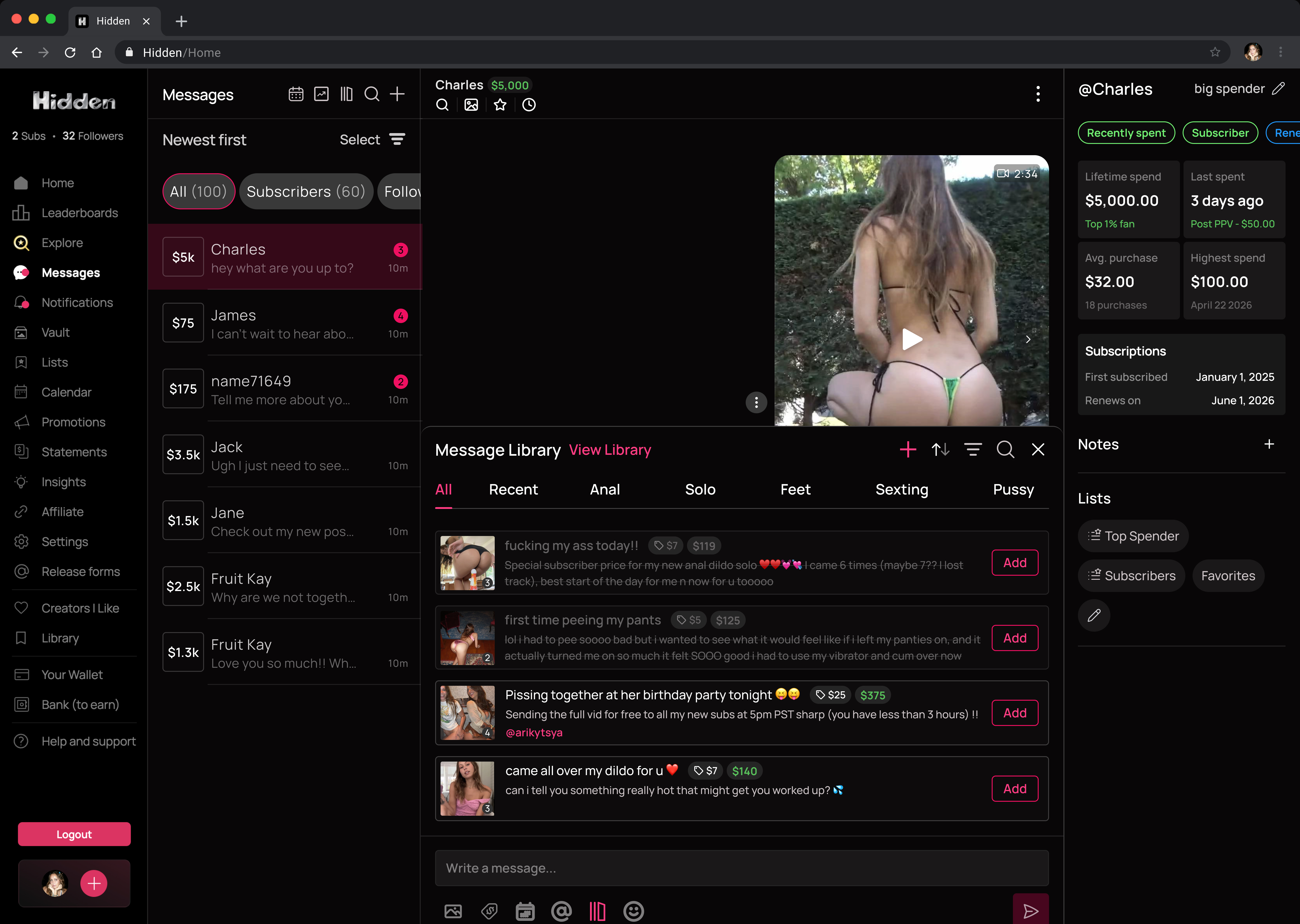
- Pop-up da Message Library (o jeito rápido) — toque no ícone da Message Library na barra de ferramentas do chat, abaixo do campo de texto, para deslizar seus roteiros sem sair da conversa.
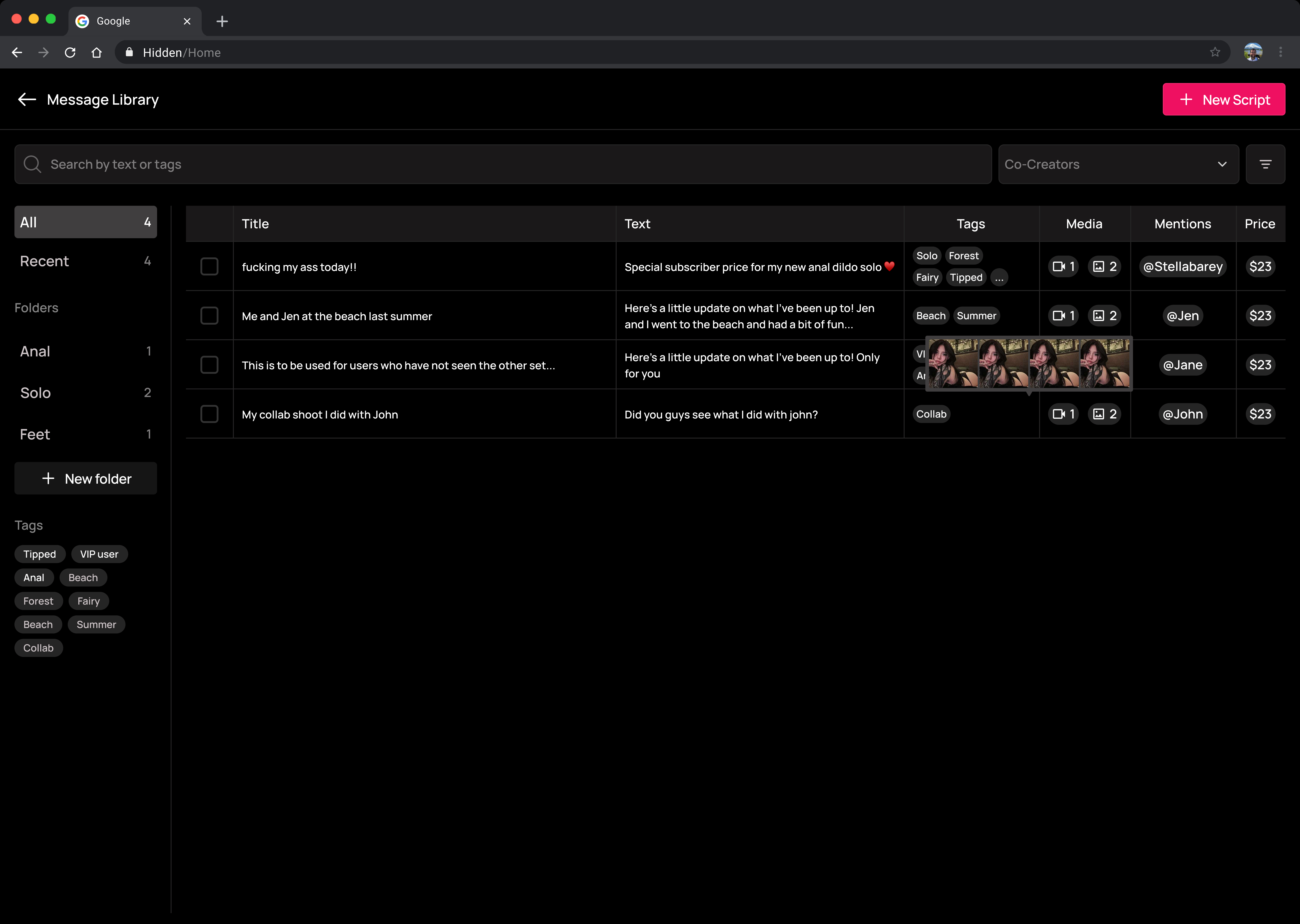
- Biblioteca em página inteira (para gerenciar) — abra-a a partir do ícone da biblioteca no cabeçalho da sua caixa de entrada, ou do ícone de lápis no topo do pop-up.
Criando um roteiro
Toque em + Nova mensagem e preencha:
| Campo | Para que serve |
|---|---|
| Título | Um nome interno curto — só para você; fãs nunca verão |
| Pasta | Onde está arquivado (escolha uma ou crie uma nova) |
| Mensagem | O texto principal da sua mensagem |
| Mídia | Anexar do seu Vault, ou Rolo da Câmera (arquivos do Camera Roll também são salvos no seu Vault) |
| Preço | Grátis, ou Bloqueado com um preço |
| Co-criador | Dê crédito a um colaborador com o @usuário dele |
| Tags | Etiquetas de formato livre (ex: "ComGorjeta", "Solo") para encontrar rápido depois |
Depois clique em Criar mensagem. Editar um script depois só afeta os envios futuros — mensagens que você já enviou permanecem como estavam.
Organizando: pastas & tags
- Pastas — arquive cada script em uma pasta. Duas estão sempre lá: Todos (tudo) e Usados recentemente (seus últimos 20 enviados). Crie as suas próprias (ex: "Boas-vindas", "Promoção", "Collabs") — nomes com até 50 caracteres.
- Tags — adicione tags personalizadas e filtre por elas com um toque. Ótimo para abranger pastas ("Com gorjeta", "Pacote", "$25").
Usando um script em um chat
- Abra uma conversa e toque no ícone da Message Library na barra de ferramentas.
- Navegue por abas de pasta, pesquise ou filtre — então toque em Adicionar no que você deseja.
- Ele carrega no seu editor — mas não envia ainda. Ajuste o que for necessário e então pressione Enviar.
💡 O carregamento é aditivo. Um script adiciona ao que você já digitou ou anexou — ele nunca apaga o seu editor. Já digitou algo? O texto do script é adicionado a ele.
Em um chat 1-para-1, qualquer script que você já enviou para este fã aparece riscado e acinzentado — para que você não se repita (você ainda pode reenviar se quiser). É por fã, então o mesmo script parece novo para todos os outros.
Usando scripts em mensagens em massa
Scripts funcionam em mensagens em massa da mesma forma — abra o pop-up da Message Library em uma janela de mensagem em massa e toque em Adicionar para carregá-lo no seu compositor de mensagens em massa. (O estilo riscado de "já enviado" não aparece em mensagens em massa, pois é rastreado por fã individualmente.)
Gerenciando sua biblioteca (visualização de página inteira)
A visualização de página inteira é o seu centro de comando:
- Buscar por texto, tags, preço, cocriador ou pasta
- Filtrar e organizar — Tem mídia, Tem cocriador, Gratuito, Bloqueado, e organizar por Data de Criação
- Selecionar múltiplos scripts para ações em massa:
- Mover para uma pasta
- Duplicar (cria uma "(cópia)")
- Excluir (com uma confirmação)
- Enviar Para — carregar um script na conversa que você tem aberta (somente quando exatamente um é selecionado)
★ Dicas e Truques
★ Crie scripts para seus momentos repetidos — reconquista, promoção de fim de semana, lançamento de PPV.
★ Personalize um script carregado antes de enviar — um nome ou detalhe rápido faz com que pareça um para um.
★ Tag por tema e preço para que você possa pegar a mensagem certa no meio da conversa em segundos.
★ Faça uma venda carregando um script promocional em uma mensagem em massa para uma lista inteira de uma vez.
Perguntas Frequentes
Relacionados
- 📨 Caixa de Entrada e Mensagens — onde você usa seus scripts
- 📇 Fan CRM — saiba para quem você está enviando mensagens
- 🗄️ Vault — onde a mídia do seu script está
- ✨ Smart Vault — escolha o arquivo perfeito ao anexar mídias
Mais Perguntas?
Fale conosco aqui: