← Central do Criador · Guias de Recursos
✨ O Smart Vault está no ar.Abra seu Vault dentro de qualquer conversa e cada arquivo mostra o que este fã já viu, comprou ou ainda não desbloqueou — assim, cada envio é inteligente.
O que é
Smart Vault transforma seu Vault em uma ferramenta de vendas personalizada para cada fã. Abra seu Vault dentro de uma conversa e cada arquivo mostra o contexto sobre aquele fã — um rótulo de status, a data de upload e uma dica de ferramenta com os detalhes. Filtre por status, ordene por curtidas ou gasto total e pesquise por tag para encontrar o item perfeito para enviar.
Os rótulos de status em um relance:
| Rótulo | O que significa |
|---|---|
| ✉️ Enviado | Você enviou este arquivo para o fã por trás de um paywall, e ele ainda não o desbloqueou. |
| 💸 Comprado | O fã desbloqueou/comprou este arquivo. Fácil de notar pela sobreposição branca em cima de cada arquivo comprado. |
| 🆓 Grátis | O arquivo chegou a este fã sem um paywall (prévia gratuita em uma mensagem/postagem ou postagem pública gratuita) |
| 📰 Postagem do Feed de Assinantes | O arquivo foi postado no seu feed de assinaturas |
| 🔒 Postagem Bloqueada | O arquivo está em uma postagem paga que o fã ainda não desbloqueou. |
Por que é importante
Chega de enviar para um fã algo que ele já comprou. O Smart Vault mostra exatamente o que cada fã já viu, o que ele pagou e o que ainda é novidade — assim, cada envio é inteligente, e suas joias não utilizadas não acumulam poeira.
Primeiros passos
1. Abra o Smart Vault
O Smart Vault só aparece quando você abre seu Vault de dentro de uma conversa com um fã. Abra um chat, abra seu Vault de lá, e cada arquivo se ilumina com contexto sobre o aquele fã.
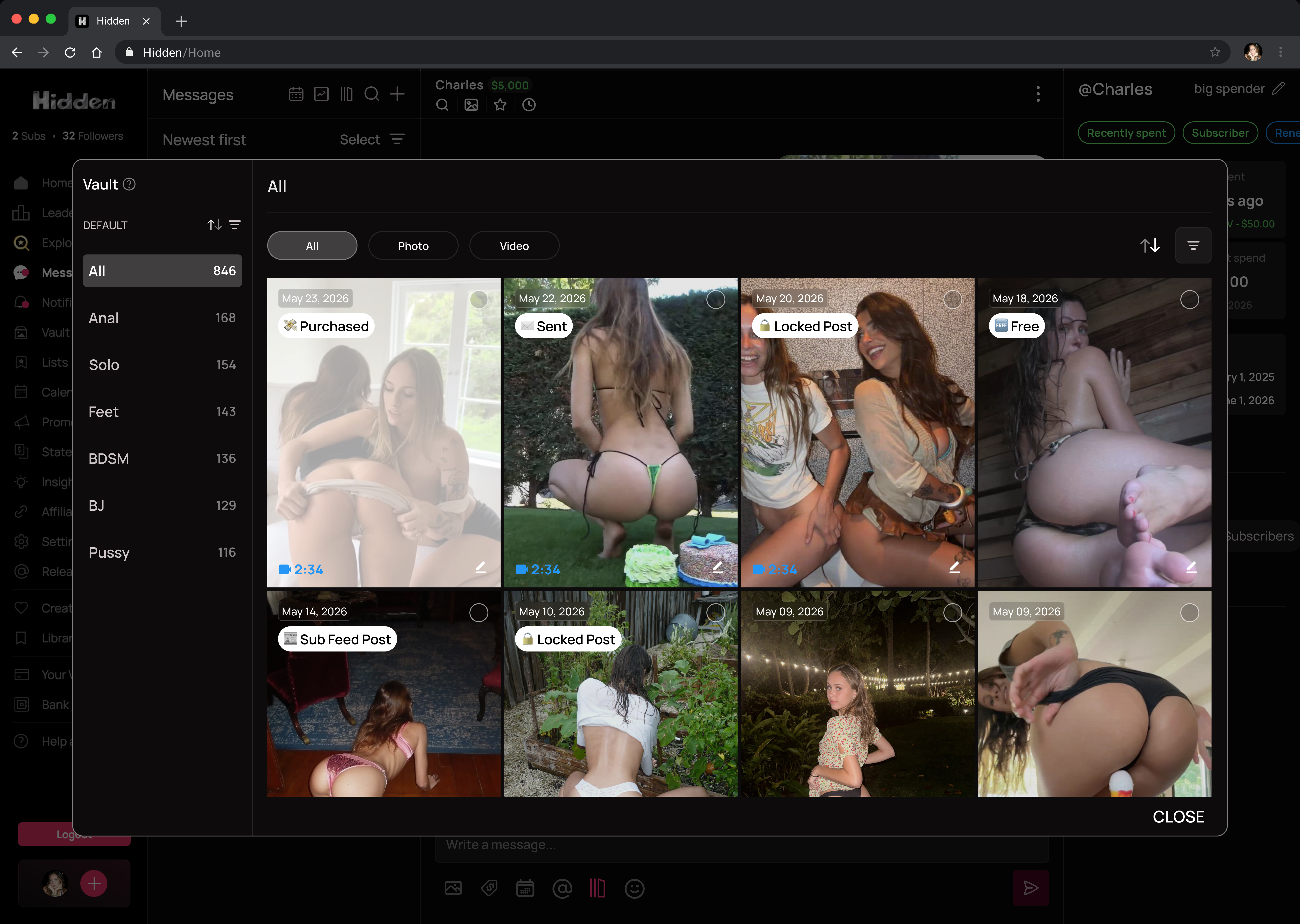
O que há em cada miniatura de arquivo
Uma vez dentro, cada arquivo mostra sua história rapidamente:
- Métrica superior esquerda — muda com a sua organização: a data de upload, ♥ curtidas, ou $ gasto total
- Rótulo de status — um de Enviado / Comprado / Gratuito / Postagem no Feed de Assinantes / Postagem Bloqueada (veja a tabela acima)
- Sobreposição branca — cobre qualquer arquivo que o fã já Compradotenha, para que se destaque instantaneamente
- Crachá de duração do vídeo — canto inferior esquerdo em arquivos de vídeo
- Ícone de lápis ✏️ — canto inferior direito; toque para adicionar uma tag ao arquivo. As tags são salvas no arquivo e aparecem em toda a sua Vault
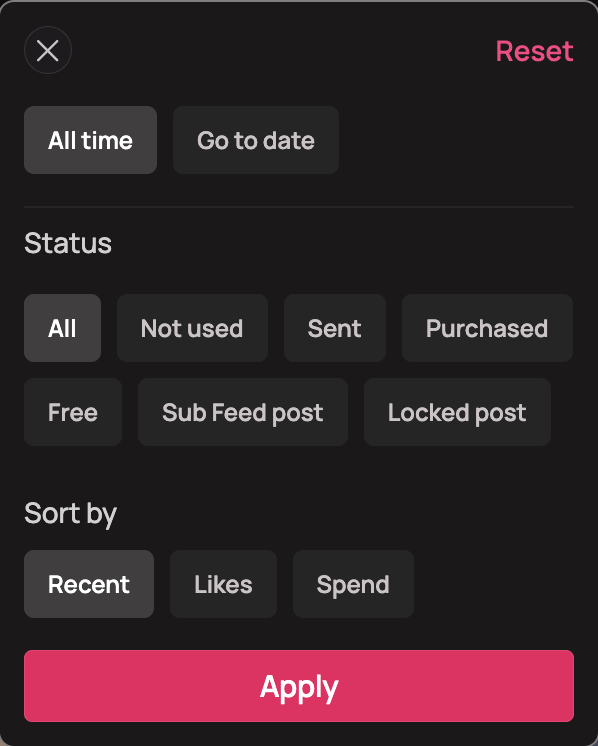
2. Classifique e filtre por status
Abra o filtro para classificar e filtrar seus arquivos pelo rótulo de status — mostre apenas o que você já Enviadotem, traga à tona tudo o que ainda não foi comprado para encontrar sua próxima venda adicional, ou classifique por gastos para começar com seus melhores desempenhos.
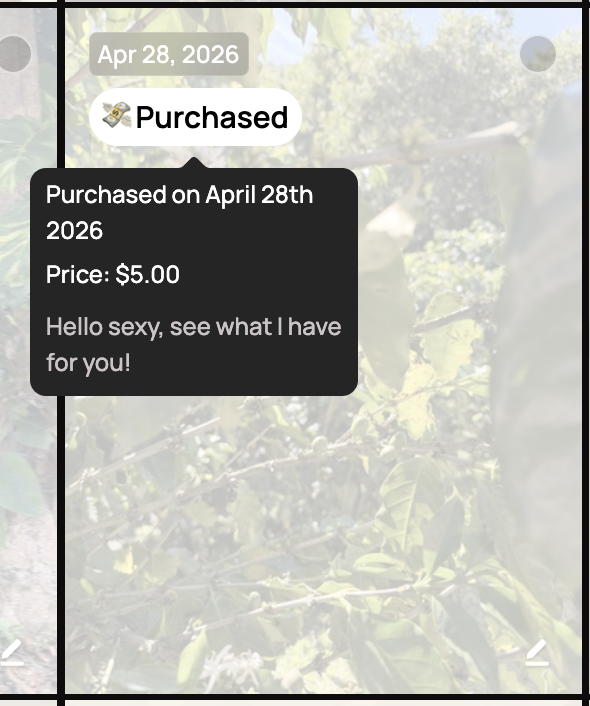
3. Dê uma olhada nos detalhes
Passe o mouse sobre qualquer rótulo de status para ver a legenda ou mensagem que foi enviada ou postada junto com aquele arquivo — assim você lembra exatamente o que aquele fã já recebeu e nunca se repete.
★ Dicas e Truques
★ Filtre para "ainda não comprado" para encontrar instantaneamente conteúdo novo para um fã com quem você conversa muito.
★ Classifique por gastos para ver seus arquivos de melhor desempenho e comece com eles.
★ Marque arquivos com o ícone de lápis conforme avança — seu eu futuro os encontrará em segundos.
Perguntas Frequentes
Relacionados
- 🗄️ Vault — a biblioteca que o Smart Vault constrói
- 📇 Fan CRM — o contexto do fã por trás dos rótulos
- 📨 Caixa de Entrada e Mensagens — onde o Smart Vault aparece
Mais Perguntas?
Fale conosco aqui: